
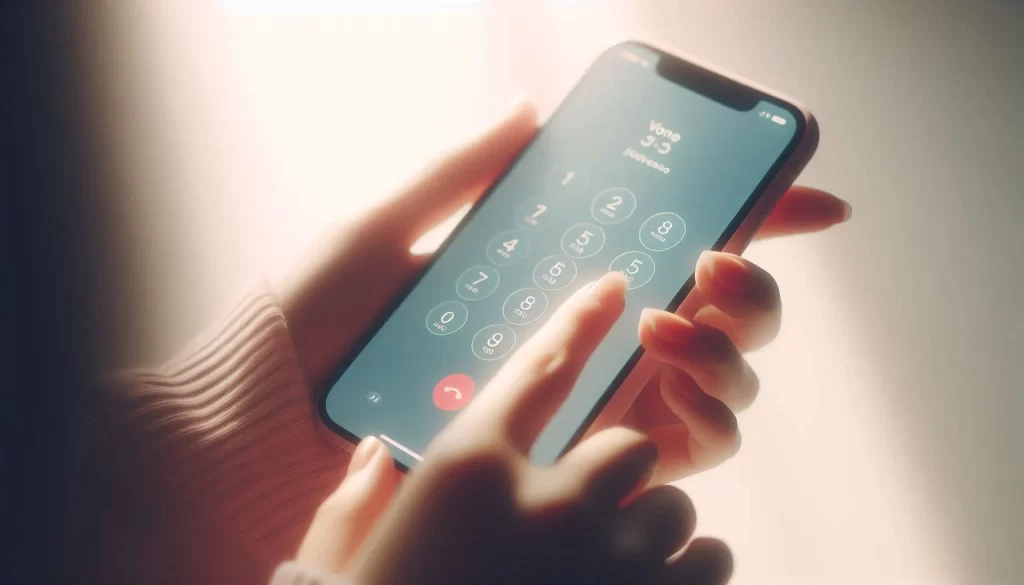
How To Set Up A Senior-Friendly Smartphone
Setting up a smartphone can feel overwhelming, especially for seniors who didn’t grow up with this technology. But don’t worry – with just a few thoughtful adjustments, you can turn a complicated phone into something that’s simple, helpful, and even fun to use. Whether you’re doing a senior smartphone setup for yourself or helping a loved one, this guide is here to walk you through each step with ease.
At Tech Assist For Seniors, I provide in-home tech help for seniors in Lakewood Ranch, FL, designed specifically for older adults. Let’s get into how to make that senior-friendly smartphone truly accessible and easy to use.
1. Choose the Right Phone for Seniors
Start by picking a phone that fits your needs. For Apple fans, the iPhone SE is a great choice – simple, affordable, and easy to use. For Android users, look for models that support “Easy Mode” or allow third-party launchers that simplify the home screen for better accessibility.
2. Increase Text Size and Contrast
Eyesight changes with age, so increasing text size and screen contrast can make a big difference in your senior-friendly smartphone setup.
- On iPhone: Go to Settings > Accessibility > Display & Text Size (Apple Accessibility)
- On Android: Try Settings > Display > Font Size and Color and Contrast (Android Accessibility)
Enable bold text, dark mode, or high contrast settings to make reading easier.
3. Simplify the Home Screen
Too many icons? Let’s tidy that up.
- Remove unused apps
- Group similar apps into folders (like “Health” or “Games”)
- Add only the most-used apps to the main screen – like Phone, Messages, Camera, and Photos
This part of the smartphone setup for seniors can reduce confusion and make navigation much easier.
4. Add Easy Access Shortcuts
For quick access to essential tasks, add shortcuts for:
- Calling favorite contacts
- Opening video chat apps like FaceTime, Zoom, or Skype
- Accessing health apps or medication reminders
On Android, you can even place direct contact shortcuts right on the home screen of your senior-friendly smartphone.
5. Adjust Notification Settings
Loud alerts and constant buzzes can be overwhelming. Set notifications to vibrate less or ring louder depending on preference.
- Choose distinct ringtones for family members
- Turn off non-essential app notifications to keep things calm and focused
6. Turn On Accessibility Features
Modern smartphones come with helpful features designed just for this.
- VoiceOver (iPhone) or TalkBack (Android): Reads what’s on the screen aloud
- Magnifier: Turns the phone into a digital magnifying glass
- Assistive Access (iPhone): A simplified, senior-friendly interface that limits distractions and focuses on essentials
- Guided Access: Locks the phone into a single app (great for those with cognitive impairments)
7. Set Up Emergency Contacts
This is crucial for peace of mind when configuring a senior-friendly smartphone.
- On iPhone: Settings > Health > Medical ID
- On Android: Settings > Safety & Emergency
Add emergency contacts, list allergies or medications, and enable Emergency SOS, which lets users quickly call 911 by pressing a button multiple times.
8. Explore Apps Made for Seniors
Some apps are tailor-made for seniors, like:
- Pill Reminder – never miss medication again
- Libby or Audible – for audiobooks
- Magnifying Glass + Flashlight – helpful for reading small print
- Sudoku or Word Games – for mental stimulation and fun
Installing just a few useful apps can make a big difference in daily life with your easy smartphone.
9. Secure the PhoneKeep things safe but simple:
- Avoid linking credit cards or sensitive banking apps unless absolutely necessary
- Set up a 4-digit passcode or use Face ID for easier unlocking
- Turn on Find My iPhone or Find My Device in case the phone is misplaced
10. Teach Basic Gestures
Touchscreens can be tricky at first, especially for seniors new to smartphones.
- Teach swiping, tapping, and holding down for options
- Explain the difference between the Home button, Back button, and App switcher
- Practice opening and closing apps slowly and patiently
This step is key for building confidence during the smartphone setup for seniors.
11. Offer Ongoing Support
Technology takes time – and a little repetition goes a long way.
At Tech Assist For Seniors, I specialize in providing patient, in-home tech help for seniors in Lakewood Ranch, FL. I offer one-on-one training, device setup, troubleshooting, and more – all at your pace.
Let Me Help You Get Started
Technology doesn’t have to be frustrating. With a little help, smartphones can become easy smartphone tools for seniors. Whether you need support getting started or want someone patient to guide you through the emergency setup for seniors, I’m here to help – right here in Lakewood Ranch, FL.
If you or a loved one could use personalized, in-home smartphone setup for seniors, don’t hesitate to reach out. I’m just a phone call away – and happy to help you feel more confident using your tech.