Smartphone & Tablet Help and Training for Seniors
Patient, one-on-one smartphone and tablet lessons for seniors, on your own device, at your own pace
(941) 201-9450 Send MessageSmartphone and Tablet Training in Manatee & Sarasota
Tech Assist For Seniors provides patient, in-home smartphone and tablet lessons for older adults and caregivers throughout Manatee and Sarasota Counties. I come to your home to teach real skills on the device you already own.
If you or a loved one is feeling stressed by phones, tablets, computers, smart TVs, or online accounts, you are in the right place. My goal is to remove the frustration and replace it with clear steps you can follow at your own pace.
Tech Assist For Seniors is a local, one-person business. You work directly with me, Sean, every time, so you always know who is coming to your home.
Common Smartphone and Tablet Frustrations
Many seniors share the same concerns when it comes to phones and tablets. These devices can feel confusing, crowded with apps, or difficult to control. If any of these sound familiar, you are not alone. Many older adults feel this way, and it is completely normal. Here are a few challenges I hear often:
- "I am afraid I will press the wrong button and change something important."
- "There are too many apps and I forget where everything is."
- "Pop-ups and alerts show up and I am not sure what they mean."
How I Can Help You At Home
My visits are calm, patient, and focused on what you want to learn. We move at a comfortable pace, and you can ask the same question as many times as you like. Each visit is personalized: some clients want help with calls and texting, others with apps or email, and many prefer video calls to stay connected with family.
- In-home visits throughout Manatee and Sarasota Counties: I come directly to your home so you do not have to travel or sit in a store.
- Step-by-step guidance: We take our time, repeat steps as needed, and focus only on the tasks that matter to you.
- Clear written notes: Before I leave, I write simple instructions so you can follow the steps later without guessing.
- Safety and confidence: I help reduce pop-ups, organize apps, and explain settings so everything feels easier and more predictable.
What We Cover in a Smartphone Lesson
Unlike a one-time class at a library or community center, a visit with me is built around your phone, your questions, and your pace. We go at whatever speed feels comfortable, and I write down the steps in large print so you have something to reference later. A typical first lesson includes:
- The basics: the power button, volume buttons, charging port, and unlocking the screen.
- Calls and texting: answering, dialing, saving contacts, and sending a text message.
- Photos: taking a picture and finding it again, then sharing it with family.
- Video calling: setting up FaceTime or WhatsApp so you can see family on the screen.
- Apps you already have: for example, setting up Apple Pay on an iPhone if that is something you want to use.
- One safety habit: how to recognize a suspicious text or call and what to do about it.
Make Your Phone or Tablet Easier to Use
Modern smartphones and tablets have many settings that can make them much easier for seniors to see, hear, and navigate. During your visit, I can adjust these options so your device feels comfortable, simple, and tailored to your needs.
Larger Text and Clearer Icons
I can increase text size, bold the font, and organize your home screen with larger icons. These changes make it easier to read messages, open apps, and see who is calling.
Louder and Easier-to-Hear Alerts
Together we can adjust volume, ringtones, and alert sounds so calls and notifications are easier to hear. I can also turn on features like vibration or flashing alerts if needed.
Simple Home Screen Layout
Many seniors prefer a clean, uncluttered home screen. I can remove unused apps, create clear folders, and place your most important tools (phone, messages, camera, email) front and center.
Safety and Privacy Settings
I help review settings that protect your privacy, reduce unwanted pop-ups, and limit interruptions. If you want, we can also set up screen time limits or simple password options to make your device easier to manage.
Accessibility Tools for Seniors
Phones and tablets include helpful features like screen readers, magnifiers, hearing aid support, and guided access. I can show you how each one works and turn on the features that make your device easier for you.
Smartphone and Tablet Help
- Service Area: In-home visits throughout Manatee and Sarasota Counties, including Lakewood Ranch, Bradenton, Parrish, and Sarasota.
- Visit Type: One-on-one smartphone, tablet, and general tech training for seniors and caregivers.
- Rate: $40 per hour with a one-hour minimum.
- Ideal For: Seniors who want patient, step-by-step lessons on their own device.
About Me
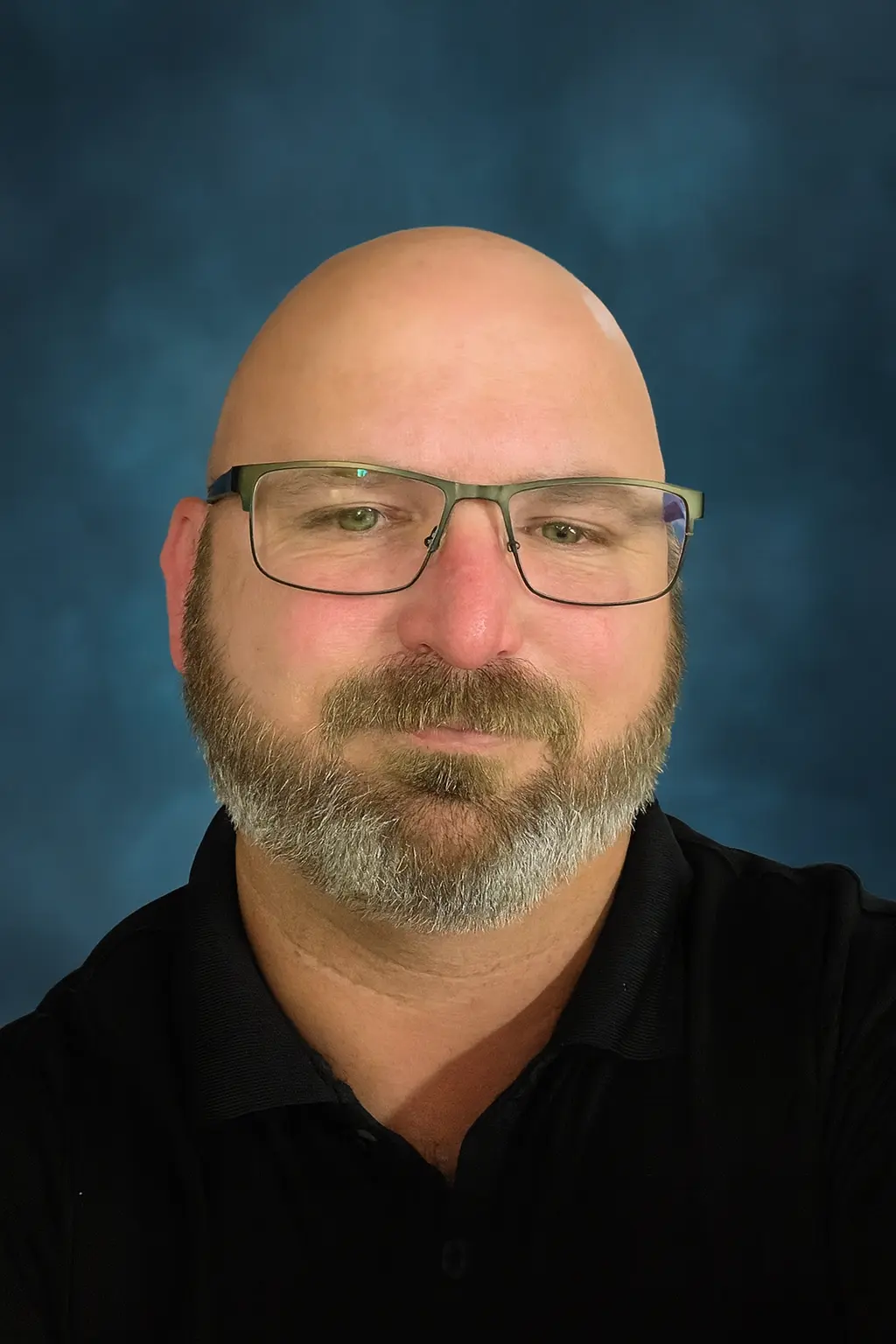
My name is Sean Gagne, and I run Tech Assist For Seniors. I help older adults and caregivers feel more comfortable using everyday technology through calm, one-on-one support.
I have a background in web design, user experience, coding, app development, and artificial intelligence. I enjoy turning confusing screens and settings into simple, repeatable steps that make sense.
You work directly with me every visit, and I specialize in patient help for older adults and caregivers. I repeat steps, slow things down, and explain things clearly.
My goal is to help you feel calmer and more confident using your devices, not overwhelmed or judged.
Other Ways I Can Help You With Technology
Every home is different, and many seniors need help with more than one device. Along with smartphone and tablet support, I can also assist with other common tech needs. During each visit, you can choose one main focus or ask for help with a few small items, and we will create a simple plan together.
- Smart TV and streaming setup: Make it easy to watch your favorite shows without searching through confusing menus. Learn more in the smart TV setup guide.
- Computer basics and email: Get help with email, browsing, organizing files, and basic computer tasks at your own pace.
- Smart speakers and voice assistants: Set up devices like Alexa for reminders, music, and simple voice commands. Explore more on the Alexa routines page or the Alexa safety guide.
- Scam and safety review: Check devices for risky pop-ups, secure important settings, and review safe online habits.
- Telehealth and patient portals: Help with logging in, viewing appointments, and using basic health portal features.
What Neighbors Have To Say
"My desktop would not connect to Wi-Fi and I could not fix it. Sean came to my home, found the problem, and had it working again very quickly. His rates were fair and he was very friendly."
Verified Nextdoor review
I teach on your own phone or tablet, in your own home, not on a demo device at a store. You always know who is coming and what we are working on.
Many of my smartphone and tablet clients are referred by adult children, caregivers, or neighbors looking for someone patient to help their parent.
I teach one skill at a time and write down what we covered in large print, so you have something to look back at after I leave.
FAQ About Tech Assist For Seniors
How do you teach a senior to use a smartphone?
I start with what you most want to do with the phone, then teach one skill at a time and let you repeat it yourself until it feels natural. There is no rush, no jargon, and you can ask the same question as many times as you need.
Are there smartphone classes for seniors near me?
Some libraries and senior centers in Manatee and Sarasota Counties offer group classes. If you would rather learn on your own phone, at your own pace, without sitting in a group, an in-home lesson is usually a better fit, especially for someone who wants to go slowly or ask questions freely.
What areas do you serve?
I provide in-home tech help throughout Manatee and Sarasota Counties, including Lakewood Ranch, Bradenton, Parrish, Sarasota, and nearby neighborhoods. If you are not sure whether your home is included, you can ask on the contact page.
How much does a visit cost?
My rate is $40 per hour with a one-hour minimum. If we go past the first hour, the time is billed at the same hourly rate.
Do you work with seniors in independent or assisted living?
Yes. I visit seniors in independent living, assisted living, and memory care communities. If you are arranging help for a parent, you may find my guide on how to arrange tech support for elderly parents helpful.
Can you help my parent if I am not at the visit?
Yes. Many adult children live out of town or have busy schedules. We can talk before and after the visit so you know exactly what we worked on.
What kinds of devices can you help with?
I help with smartphones, tablets, laptops, desktop computers, smart TVs, streaming devices, Wi-Fi, and voice assistants. For more details, you can visit my page on computer and internet help for seniors.
Can you help protect seniors from scams and pop-ups?
Yes. Scam prevention is an important part of my work. You can learn more from my guide on scam awareness for aging adults.
How should we prepare for a tech visit?
It helps to gather your devices, chargers, passwords, and any notes in one place. You can also review my guide on how to prepare for an in-home tech visit.
Ready to Make Your Device Easier to Use?
If you or a loved one in Manatee or Sarasota County needs patient, in-home smartphone and tablet help, I am here to support you. We can take things one step at a time until your device feels easier, safer, and less stressful to use.
You can call to talk through your needs or schedule a visit when you feel ready. I am happy to answer questions so you feel comfortable before we begin.
Call Now