
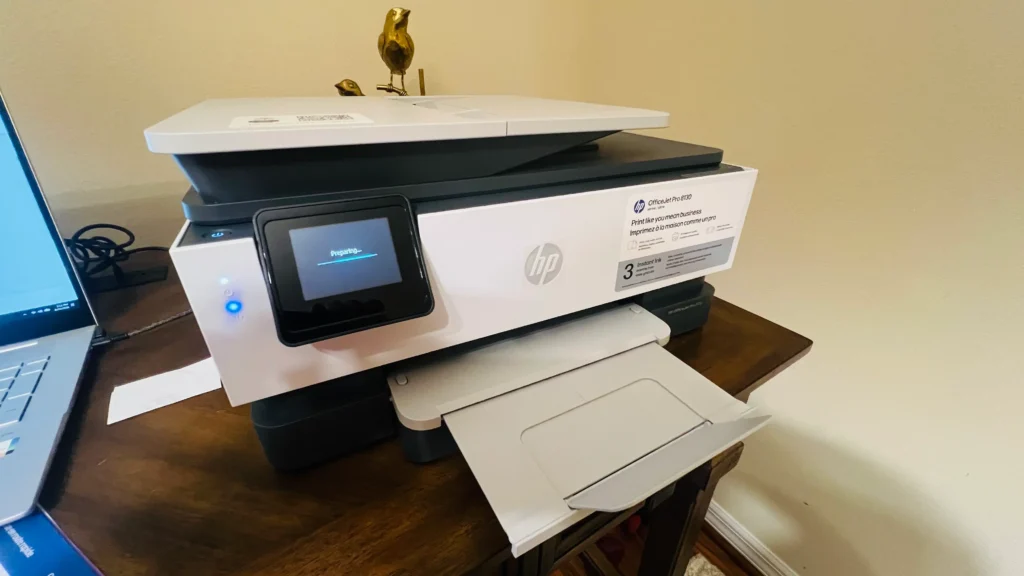
Printer Setup Looks Different Now
I set up a brand new HP OfficeJet Pro at a client’s home in Bradenton this week, and the process caught me off guard. There was no setup CD. There was no software wizard walking through screen after screen. Instead, there was a small sticker on the printer with a web address printed on it.
If the last printer you set up was more than a few years ago, this is good to know before you buy a new one. The steps are still simple, but they are not the steps you remember.
If your current printer is having trouble staying connected instead, my guide on why printers keep disconnecting from Wi-Fi covers that separately.
What to Check Before You Buy a New Printer
Since I am in and out of homes setting up new printers regularly, I have noticed a few more surprises to know about before you buy one, not just after you unbox it.
- Some printers no longer have a USB or Ethernet port. A growing number of new models connect over Wi-Fi only, with no cable option as a backup. If your home Wi-Fi is not reliable, check for this before you buy.
- The power cord is not always included. A few newer printers ship without one, and it has to be purchased separately. It is an easy thing to miss when unboxing a printer for the first time.
- HP and Brother are the two brands I see most often, and both have moved to this same app-based, disc-free setup process.
Unboxing and the First Few Steps
The physical setup has not changed much. We took the printer out of the box, set it on the desk next to her laptop, and removed all the tape and packaging inside. HP tapes the print head and ink system in place for shipping, so pulling every piece of orange tape and cardboard out before powering it on matters. Skipping a piece can jam the printer on its very first run.
From there we installed the ink cartridges, which snap into place, and let the printer print its own alignment sheet. That sheet is normal. The printer uses it to line up the print heads correctly, and it happens automatically the first time you power the printer on. If the sheet looks blurry or the colors look off, that usually clears up after the alignment step finishes rather than being a sign anything is wrong.
The Web Address Replaces the Setup CD
This is the part that was new to me. Instead of installing software from a disc, the sticker on the printer had a web address printed on it. We typed that address into her laptop’s browser, and it walked us through the rest of the setup right there on the screen.
That web setup connected the printer to her home Wi-Fi. No cables between the printer and the router, no complicated menu diving on the printer itself. Just typing an address into a browser and following the steps.
You also need the HP Smart app
Once the printer was on the Wi-Fi network, we still needed the HP Smart app to finish adding it to her Windows computer. This is HP’s own printer management app, and it is what handles the connection between the computer and the printer going forward, including scanning.
If you run into a printer that will not talk to your iPhone or iPad no matter what you try, the manufacturer app is often the fix. I cover that in more detail in my post on what to do when AirPrint stops working.
Teaching the Client to Scan
She also wanted to learn how to scan documents, so once the printer was fully set up, we tested both ways to do it. Most printers with a document feeder on top can scan two different ways, and it helps to know when to use each one.
The glass is best for a single page, a photo, or anything delicate you do not want to feed through rollers. The document feeder is faster when you have several pages at once, since it pulls each page through automatically instead of you lifting the lid and repositioning the page every time.
We opened the HP Smart app on her computer, clicked Scan, and ran one of each. Both scans saved right to her computer as a file she could find and open again later.
- Scanning a single page on the glass
- Scanning multiple pages through the document feeder
- Opening the HP Smart app and tapping Scan
Confirming Everything Worked
Before I left, we printed one of her own emails to make sure printing worked from start to finish, not just from the printer’s own test page. It printed cleanly on the first try.
By the end of the visit she had a fully working printer and scanner, and she knew how to run both on her own. If your printer connects fine but the connection keeps dropping a few days or weeks later, that is usually a different issue than initial setup. My post on why your printer worked yesterday but not today covers what causes that and how to fix it.
Help With Printer Setup in Bradenton
If you just bought a new printer and the setup looks nothing like what you remember, you are not doing anything wrong. The process has genuinely changed. I help seniors throughout Bradenton get new printers and scanners set up and working the first time. You can see the full range of printer support I offer on my printer troubleshooting and support page, or visit my Bradenton tech support page to get in touch.