
The Phone Your Parent Left Behind
At some point, a lot of adult children end up holding a parent’s iPhone and realizing they cannot get into it. The photos are in there. Old messages. Maybe a saved document or two. And Apple’s security system is doing exactly what it is supposed to do: keeping everyone out.
I see this situation come up regularly when I help families in Lakewood Ranch and Bradenton. Someone calls because a parent passed away, and they want to recover photos or simply clear the device so it can be passed on. The hard part is that without the right setup in advance, there is often very little anyone can do.
This is not a tech failure. It is a planning gap. And it is one of the easiest things to fix while there is still time.
What Apple Digital Legacy Is
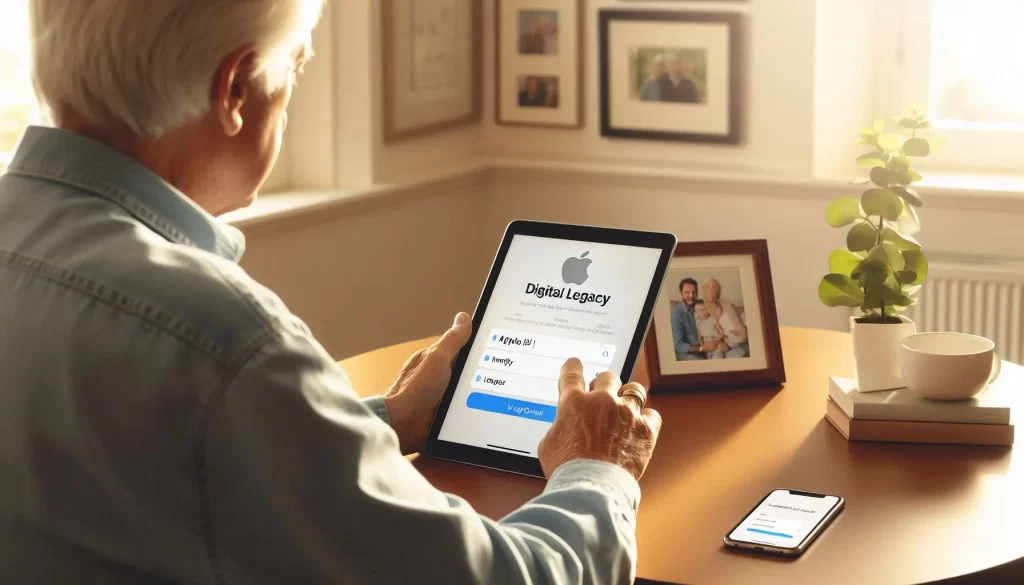
Apple Digital Legacy is a built-in feature that lets your parent name a trusted person, called a Legacy Contact, who can request access to their iCloud data after they pass away. That includes photos, messages, notes, and files stored in iCloud.
Without it, even a death certificate is not enough to unlock the account in most cases. Apple requires the Legacy Contact access key, proof of death, and verification through their Digital Legacy portal. If no Legacy Contact was set up, families typically hit a wall.
Setting one up takes about five minutes. It can be done during a regular in-home visit, and it does not require any ongoing maintenance after the initial setup.
What a Legacy Contact Can and Cannot Access
It helps to know what is available before going through the process. A Legacy Contact can access photos, messages, notes, files, contacts, and iCloud backups. That covers most of what families are usually looking for.
What they cannot access includes passwords saved in iCloud Keychain, payment information, purchased movies, music, or apps, and any accounts tied to outside services. Those remain locked regardless of Legacy Contact status.
This is why I also recommend that seniors keep a written record of important account information somewhere safe. Legacy Contact covers photos and memories well, but it does not replace having passwords written down somewhere a trusted person can find them. I talk through both during visits focused on one-on-one tech help.
The Access Key Is the Part That Gets Lost
When a Legacy Contact is set up, Apple generates an access key. This is a unique code that the Legacy Contact will need to submit alongside a death certificate when the time comes.
The key can be sent by iMessage, saved as a PDF, or printed out. In my experience, printing it and keeping a physical copy in a safe, known location is the most reliable approach for seniors. Digital copies get lost in old emails or on devices that are no longer accessible.
If the key is lost, families can still sometimes access the account through a court order, but that process is slower, more expensive, and not guaranteed. Printing the key at setup takes thirty seconds and prevents a lot of potential grief later.
How to Bring This Up With a Parent
A lot of adult children avoid this conversation because it feels like it is about death. But it is really about photos. I find that framing helps.
Something like: “Mom, I just want to make sure I can get to your photos if anything ever happens. Can we take five minutes and set this up?” That is usually enough. Most seniors are relieved when they understand what it does and how simple it is.
If your parent is hesitant about anything to do with their phone settings, having someone they already trust walk them through it makes a difference. I do this regularly during visits alongside other tasks like smartphone and tablet support.
How to Set It Up
Your parent will need their iPhone or iPad updated to iOS 15.2 or later, which most devices running recent software already have. Here are the steps.
- Open Settings and tap their name at the top.
- Tap Sign-In and Security.
- Tap Legacy Contact.
- Tap Add Legacy Contact and choose a trusted person from their contacts.
- Choose how to share the access key: iMessage if available, or print a copy.
- Store the printed key somewhere both of you know about.
What Happens After Setup
That is it. Apple sends a confirmation and the setup is complete. The Legacy Contact does not need to do anything until the time comes.
Local Help for Families in Manatee County
If you are helping an aging parent in Lakewood Ranch, Bradenton, or Parrish get their digital accounts in order, this is a natural part of that conversation. I can sit with your parent, walk through the Legacy Contact setup, help organize passwords, and make sure their device is backed up so nothing important is at risk.
You can learn more about how I work with seniors and their families on my Manatee County in-home tech support page, or visit my Lakewood Ranch page to get in touch.