
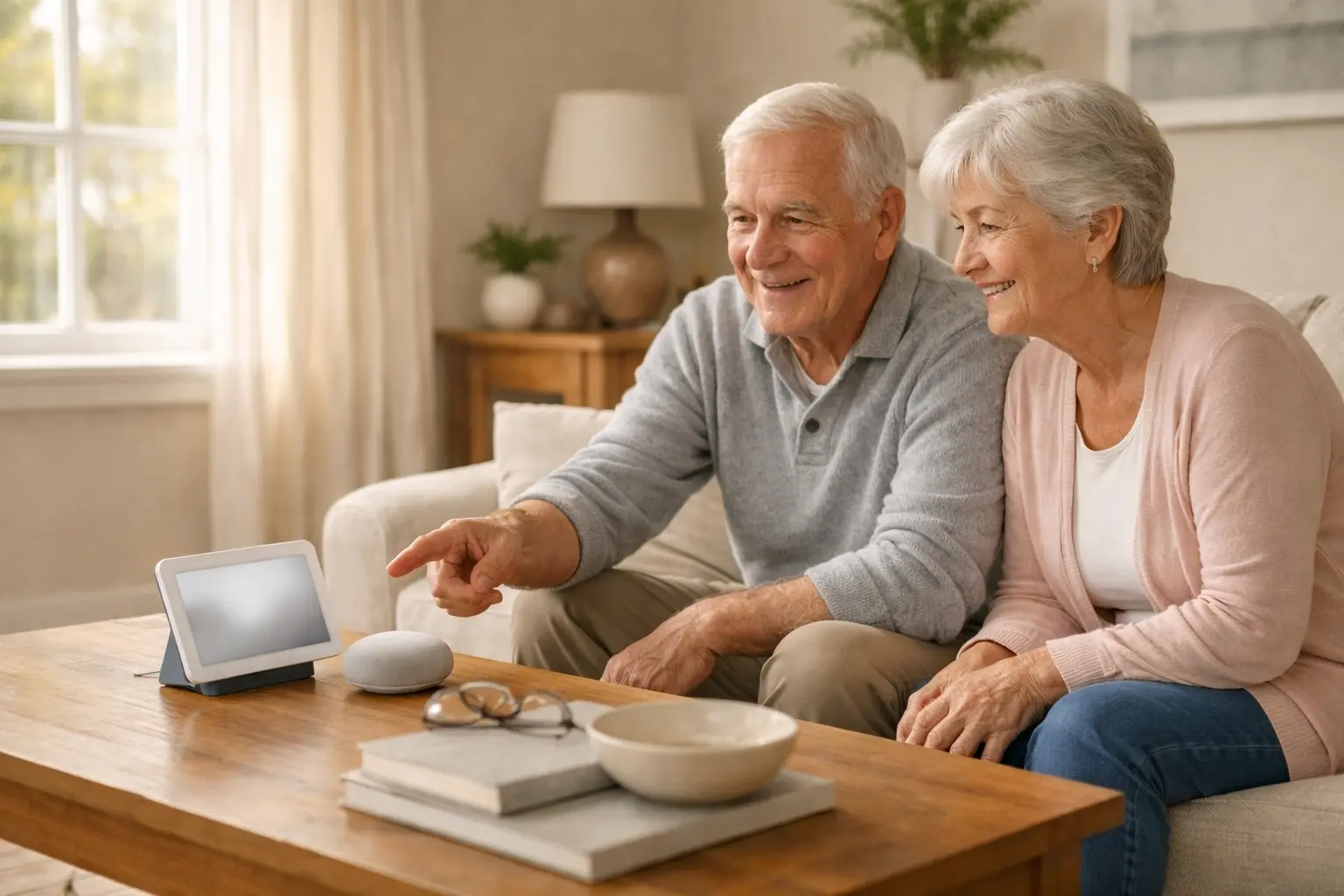
I had a client in Lakewood Ranch who told me her Google reminder never went off. She said she asked it three times, it confirmed each time, and nothing happened at the right moment. When I got there, I found out Personal Results was turned off. Nobody told her that was even a thing.
That is the most common reason reminders fail. It is not the device. It is a setting that nobody explains. I will get to that. But first, let me show you how to set a reminder that actually works.
What to Say to Set a Reminder
You do not need to memorize a script. Google Assistant understands natural speech. The key is to always include what you want to be reminded about and a specific time.
Just say: Hey Google — and then tell it what you need.
- “Hey Google, remind me to take my blood pressure pill at 8 AM every day.”
- “Hey Google, remind me about my doctor appointment tomorrow at 2 PM.”
- “Hey Google, remind me to call my daughter at 3 o’clock.”
- “Hey Google, remind me every Tuesday at noon to take out the trash.”
One-Time Reminders vs. Daily Reminders
A one-time reminder fires once and disappears. Use it for a single appointment, a phone call, or anything that only happens once.
A recurring reminder repeats on a schedule. This is what most seniors use for medications. Once it is set up, Google handles it every day without you doing anything again.
For medications especially, recurring reminders are worth setting up properly. If you need help comparing how Google and Alexa handle this differently, I wrote a guide on how Alexa and Google Home compare for everyday senior use that covers reminders and more.
The One Setting That Trips Everyone Up
This is the part most guides skip. If your reminders are not going off, this is almost always why.
Google Assistant needs something called Personal Results to be turned on. Without it, the device cannot connect reminders to your account. It will say it set the reminder, but it will not actually deliver it.
Here is how to turn it on:
- Open the Google Home app on your phone or tablet.
- Tap your device — the speaker or Nest Hub you use.
- Tap the gear icon (Settings).
- Scroll down and tap Personal results.
- Make sure it is toggled on.
Reminders vs. Calendar Events (Why People Get Confused)
A lot of my clients ask why Google says it added something to their calendar but they never got an alert. Here is the difference.
A reminder is a spoken alert at a specific time. The device says your name and tells you what to do. A calendar event shows up on your schedule but does not always announce itself out loud unless you also set an alert.
If you want Google to speak the reminder out loud at a certain time, use the word remind. That is the most reliable approach for seniors using a speaker or Nest Hub.
If you have a Nest Hub with a screen, reminders also show up visually and stay on the display until you tap to dismiss them. That extra visibility helps a lot. I cover how that works in detail in my post on the Google Nest Hub and how easy it is for older adults to use.
How Caregivers Can Set Reminders Remotely
If your son or daughter set up your Google device, they can assign reminders to you from their own phone. They just say: “Hey Google, remind Mom to take her pill at 8 AM.”
This only works if their Google account is linked to the same device and Voice Match is set up. But when it works, it is a really helpful feature. Adult children in Ohio or New York can set reminders for a parent in Bradenton without anyone touching the device.
If you are a caregiver looking for more ways to use these tools to help a loved one stay on schedule, I also have a post on how Alexa handles medication reminders and daily alerts that works the same way for Amazon devices.
What to Do When a Reminder Stops Working
This happens more often than it should. Here are the most common fixes, in the order I try them during a home visit.
- Check Personal Results — this is almost always the issue. See the steps above.
- Check the volume — if the device is muted or turned down low, reminders sound but you cannot hear them.
- Check your Wi-Fi — Google needs an internet connection to deliver reminders. If your Wi-Fi dropped overnight, reminders from that time window will not fire.
- Restart the device — unplug it, wait 10 seconds, plug it back in. This fixes a surprising number of issues.
- Check Do Not Disturb — if this mode was turned on accidentally, all alerts including reminders are silenced.
Simple Phrases to Check or Cancel Reminders
Once reminders are set, you can manage them with your voice. No app needed.
- “Hey Google, what are my reminders?”
- “Hey Google, cancel my reminder to take my pill.”
- “Hey Google, show me my reminders for today.”
Setting Up a Daily Routine Instead
If you want Google to do several things at once — like announce the weather, read your reminders, and turn on a light — that is called a routine. It is a step up from basic reminders, but not hard to set up once you are comfortable.
I have a guide on how routines work for voice assistants if you want to explore that next.
If You Want Help Getting This Set Up
I make home visits throughout Manatee County, including Lakewood Ranch, Bradenton, Parrish, and Palmetto. I can set up Google reminders, turn on Personal Results, link your calendar, and test everything before I leave so you know it works.
You can learn more about what I do on my voice assistant and video call help page, or reach out through the contact form to schedule a visit.